How I set up CloudWatch monitoring and alerts for my EC2 instance using SNS
Running a server without monitoring is like driving without a dashboard. Everything might be fine — until it isn’t, and by then your users have already noticed before you did. This is exactly the problem CloudWatch and SNS solve on AWS.
In this post I’ll walk through how I set up automatic alerts for my EC2 instance, so if the server goes down I get an email within minutes.
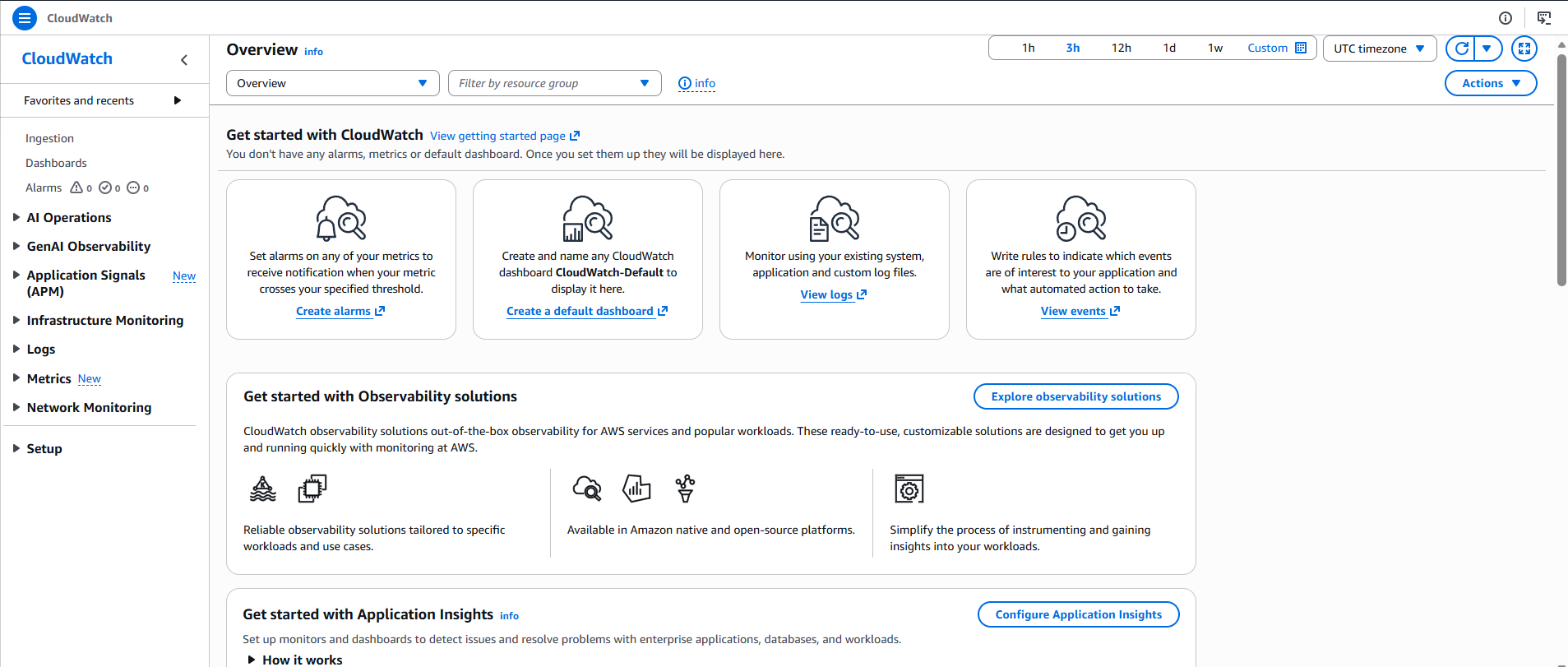
What is CloudWatch
CloudWatch is AWS’s native monitoring and observability service. It automatically collects metrics from every AWS service you run — CPU usage, network traffic, disk operations, and importantly for this setup, the health status of your EC2 instances.
The key thing to understand is that CloudWatch doesn’t just store data — it can act on it. You define alarms with conditions, and when those conditions are met, CloudWatch triggers actions. Those actions can be sending a notification, auto-scaling your infrastructure, restarting an instance, or running a Lambda function.
What is SNS
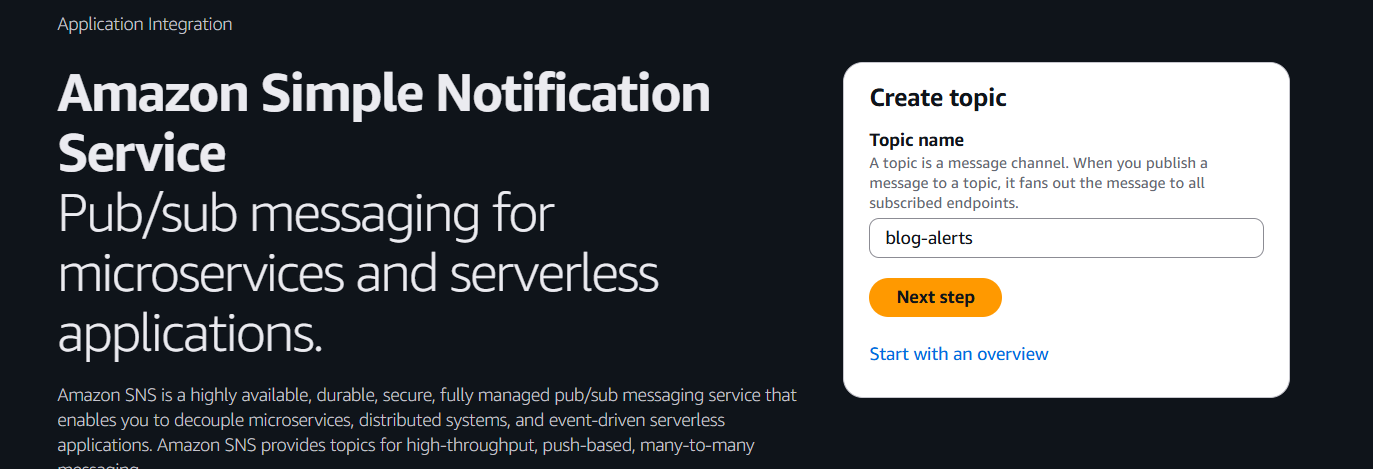
SNS (Simple Notification Service) is AWS’s pub/sub messaging service. The concept is straightforward: you create a topic, services publish messages to that topic, and subscribers receive those messages through whatever channel they prefer — email, SMS, HTTP endpoint, Lambda, SQS, and more.
In this setup, CloudWatch is the publisher and your email is the subscriber. When CloudWatch detects a problem, it publishes a message to the SNS topic, and SNS delivers it to your inbox.
Step 1 — Create an SNS topic
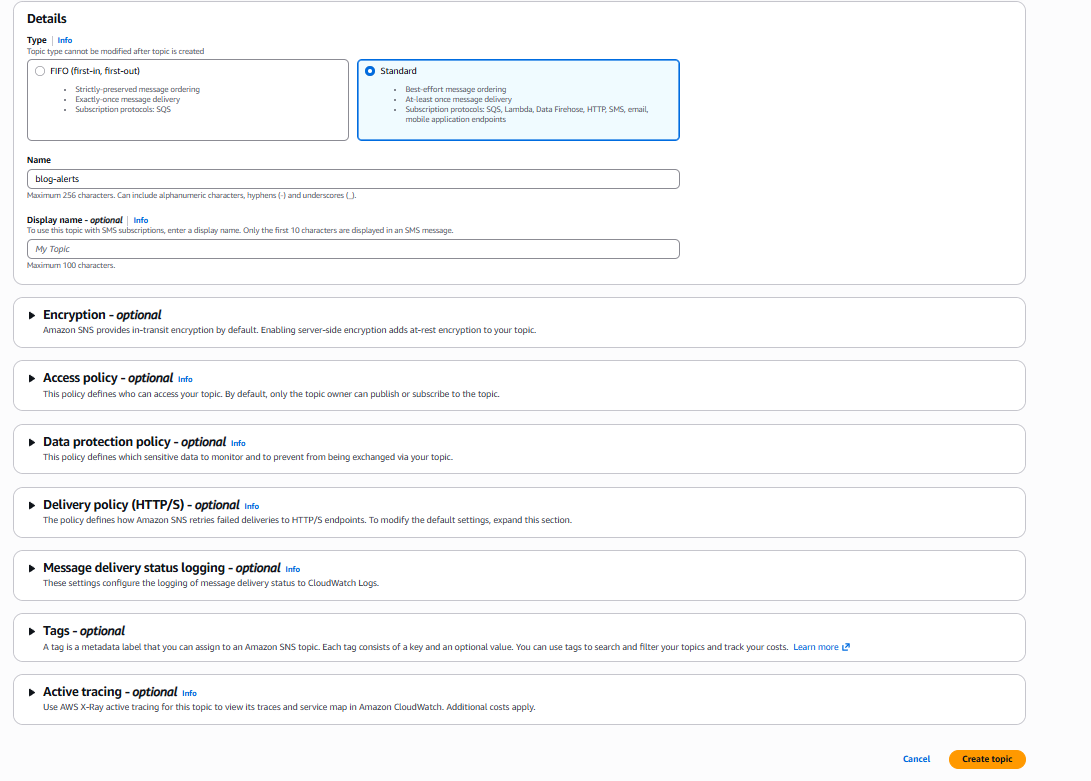
The first step is creating the notification channel. In the AWS Console go to SNS → Topics → Create topic.
- Type: Standard — best-effort delivery, supports email and HTTP endpoints
- Name:
blog-alerts - Everything else: leave as default
Once the topic is created, you need to subscribe your email to it. Click Create subscription, select Email as the protocol, enter your email address, and confirm the subscription email AWS sends you.
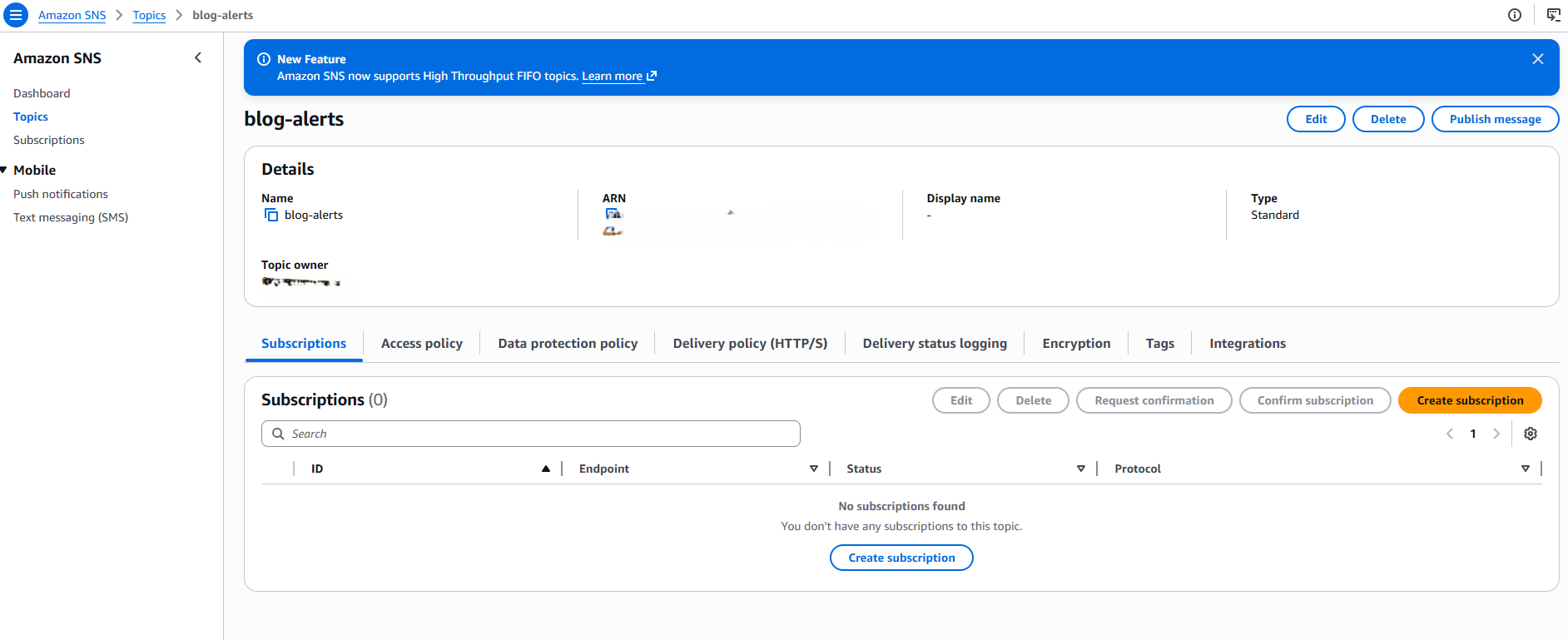
This is the pub/sub model in practice: the topic is the channel, your email is the subscriber. Any service that publishes to this topic will notify you.
Step 2 — Create a CloudWatch alarm
Now go to CloudWatch → Alarms → Create alarm.
Select metric
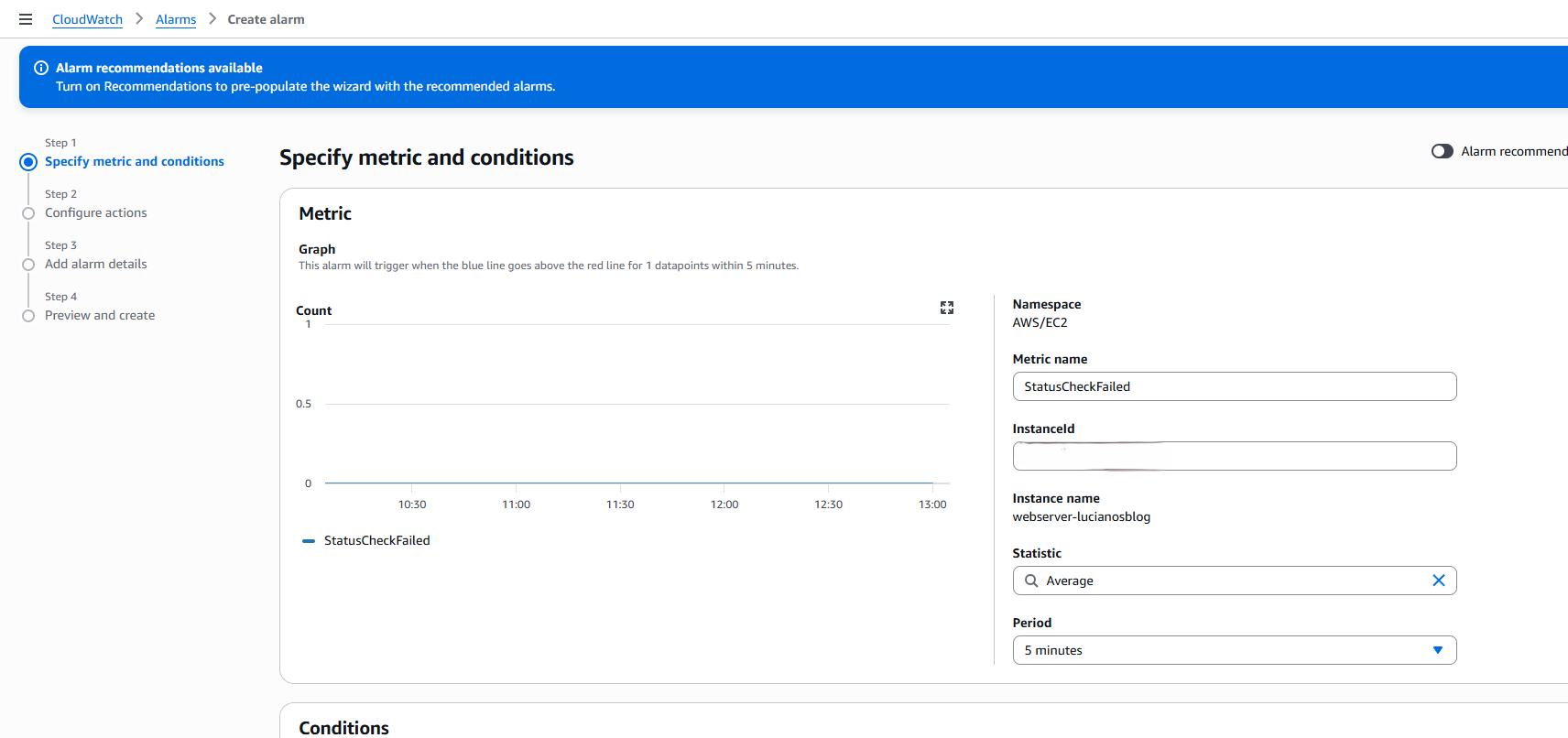
Click Select metric → EC2 → Per-Instance Metrics and find StatusCheckFailed for your instance.
This metric is the most important health indicator for an EC2 instance. AWS runs two checks every minute:
- System status check — verifies the underlying hardware and AWS infrastructure
- Instance status check — verifies the operating system and network configuration
StatusCheckFailed returns 0 when both checks pass and 1 when either fails. A value of 1 means your instance has a problem.
Set the condition
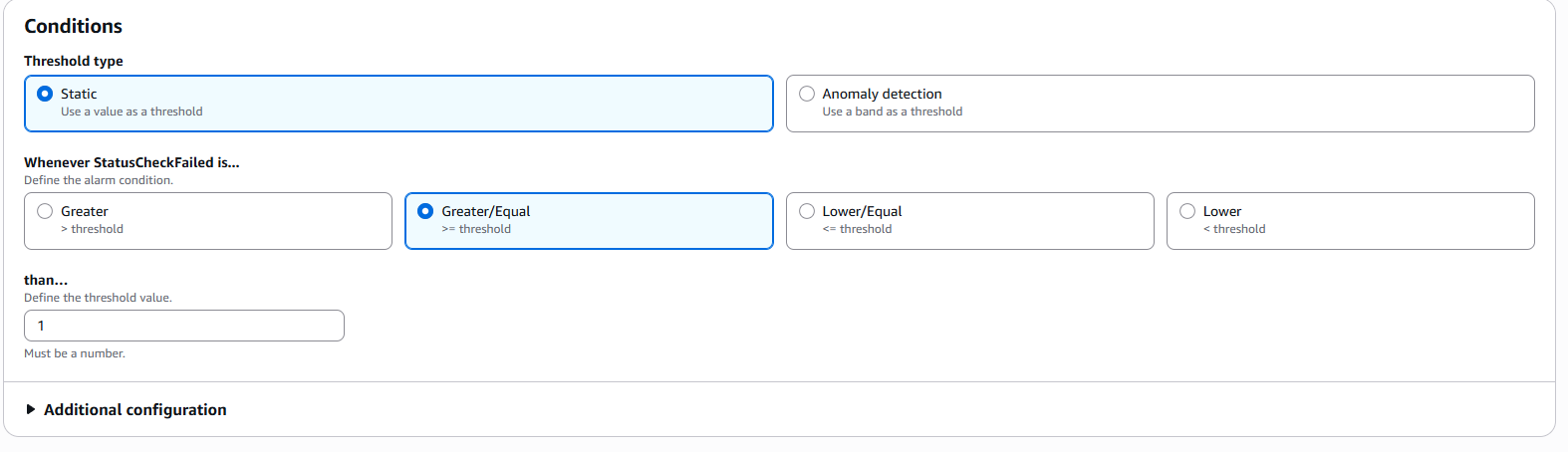
- Threshold type: Static
- Whenever StatusCheckFailed is: Greater/Equal
- than: 1
This means: trigger the alarm the moment any status check fails.
Configure the action
In Step 2, under Notification:
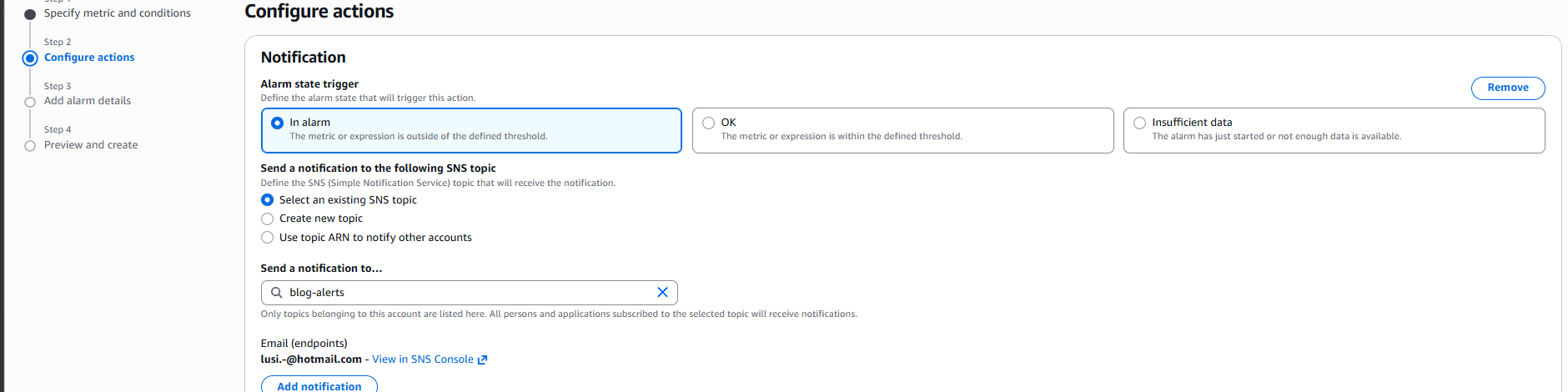
- Alarm state trigger: In alarm
- Send a notification to: select
blog-alerts
This connects the alarm to the SNS topic. When the alarm fires, CloudWatch publishes to blog-alerts and SNS delivers the email.
Name the alarm
- Alarm name:
blog-server-down - Description: Alert when EC2 instance fails status check
The result
Once created, the alarm appears in CloudWatch with state OK — meaning the instance is healthy and the alarm is active.

The full flow looks like this:
EC2 instance
    ↓ every 5 minutes
CloudWatch checks StatusCheckFailed
    ↓ if value >= 1
Alarm triggers
    ↓
SNS publishes to blog-alerts topic
    ↓
Email arrives within minutes
Cost
This entire setup costs nothing. StatusCheckFailed is a built-in EC2 metric — always free. The first 10 CloudWatch alarms and 1,000 SNS email notifications per month are included in the AWS free tier.
Why this matters beyond a personal blog
What I set up here is the same pattern used in production environments at scale. The difference is complexity — a larger system might have dozens of alarms covering CPU thresholds, memory pressure, request latency, and error rates, with actions that automatically restart services or page on-call engineers. The foundation is identical: metrics, conditions, and notification channels.
Understanding this pattern is directly relevant if you’re working toward AWS certifications or moving into cloud infrastructure roles. CloudWatch and SNS appear in both the Cloud Practitioner and Solutions Architect exams, and more importantly, they appear in every real AWS environment you’ll work with.
Find me on LinkedIn if you want to talk AWS or automation.